You can share iCloud storage with your family by using Apple’s Family Sharing feature and sharing an iCloud+ subscription with the group. Apple says Family Sharing can include you and up to five other family members, and everyone uses their own Apple Account instead of sharing one login. When iCloud+ is shared, the storage pool is shared, but personal photos and documents remain private. (support.apple.com)
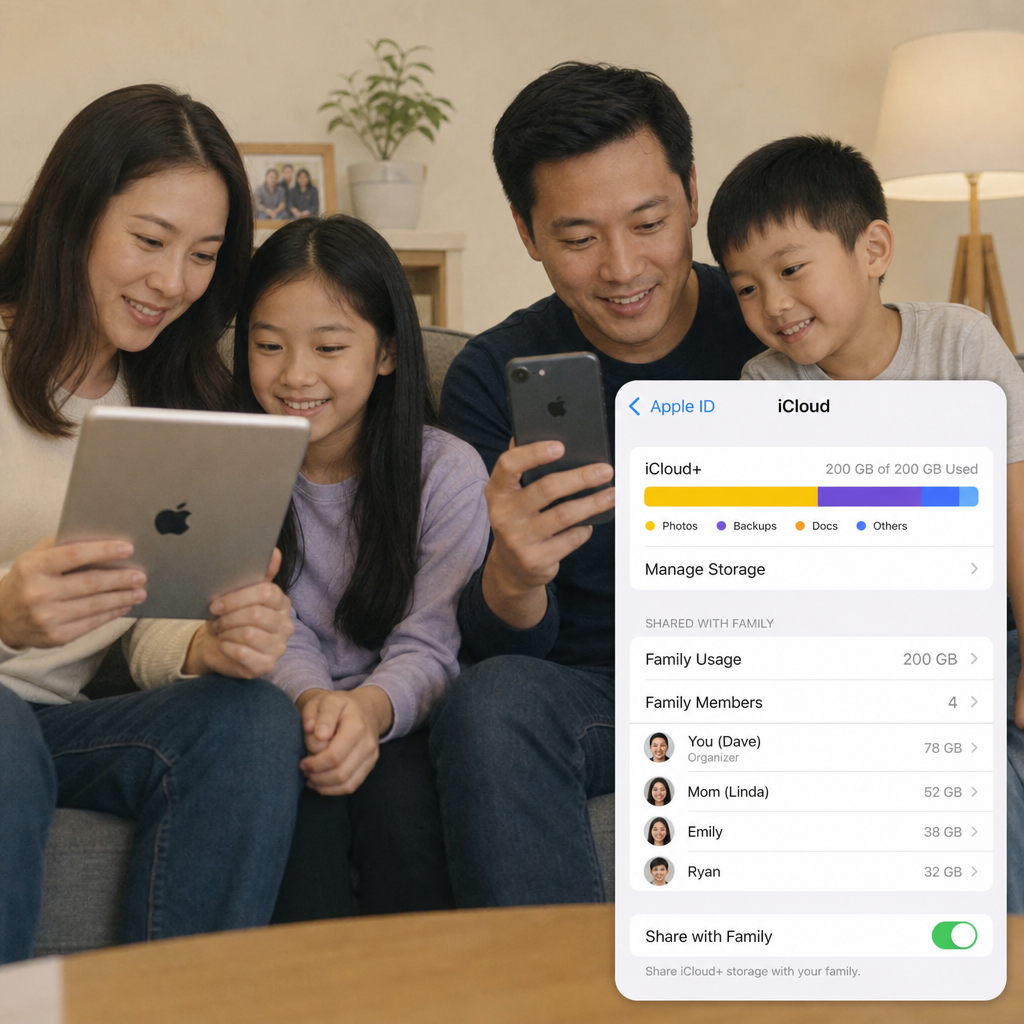
That privacy point matters. Family share iCloud does not mean everyone can browse everyone else’s iCloud Drive, camera roll, notes, or device backups. It simply means the storage allowance from one iCloud+ plan is available to the family group, so multiple people can back up devices and store files without each person maintaining a separate paid storage plan.
What you need before turning on iCloud sharing with family
Before you start, make sure the person setting things up is ready to act as the family organizer or is already part of an existing Family Sharing group. Apple’s setup flow is built around a family organizer who invites other members and manages the group. If someone is already in a different Family Sharing group, they may need to leave that group before joining yours. (support.apple.com)
You’ll also need an iCloud+ plan that supports the amount of storage your family actually needs. Apple lists iCloud+ storage tiers including 50 GB, 200 GB, 2 TB, 6 TB, and 12 TB, though availability and pricing can vary by region. A small family with only light backups may not need the same plan as a household with multiple iPhones, iPads, Macs, photo libraries, and long-term video storage. (support.apple.com)
Use this quick checklist before you begin:
- Confirm everyone has their own Apple Account. Sharing one account creates confusion with messages, photos, contacts, and purchases.
- Update devices when possible. Older software can make settings harder to find or prevent some features from appearing.
- Decide who pays for the plan. If purchase sharing is enabled, eligible shared subscriptions may be billed to the organizer’s default payment method. (support.apple.com)
- Check current storage use. If several people are already close to full, choose a larger plan before inviting everyone.
- Explain privacy clearly. People often hesitate because they think icloud for family means shared access to private files. It does not.
Step-by-step setup on iPhone or iPad
The easiest way to manage iCloud sharing with family is usually from an iPhone or iPad. Apple’s current guidance points users to the Family section in Settings, where the organizer can add members and manage subscriptions. The wording may vary slightly by iOS or iPadOS version, but the path is generally straightforward. (support.apple.com)
1. Set up or open Family Sharing
Open Settings, then tap Family. If you have not created a family group yet, follow the prompts to set one up. If the group already exists, you should see current members and options for adding more people.
If someone asks, “how can I share my iCloud storage with my family if they are not listed here?” the answer is that they must first be invited to the Family Sharing group. Tap the add member option, invite them through an available method such as Messages or Mail, and wait for them to accept.
2. Add family members
From Settings > Family, choose the option to add a member. Apple notes that the organizer can invite someone who already has an Apple Account or create a child account when needed. This is especially useful for children who need iCloud backup and parental controls without using a parent’s personal account. (support.apple.com)
Once invited, the family member should accept on their own device. If they do not see the invitation, ask them to open Settings and check the Family area. They may also need to confirm that they are signed in with the Apple Account they want to use.
3. Share the iCloud+ subscription
After the family group is ready, go to Settings > Family > Subscriptions, then choose iCloud+ and follow the onscreen instructions to share it. Apple’s iCloud guidance also describes this same flow: on iPhone or iPad, go to Family settings, tap Subscriptions, tap iCloud+, then follow the prompts. (support.apple.com)
This is the core step for anyone searching how to share iCloud storage with family. Once it is enabled, family members can use storage from the shared iCloud+ plan while staying signed in with their own Apple Account.
4. Ask members to check their storage settings
Each person should confirm that their device recognizes the shared plan. They can open Settings, tap their name, then go to iCloud to review storage status. If a family member previously paid for their own iCloud+ plan, they may see options related to switching from an individual plan to the shared family plan.
Do not rush this part. A quick check helps prevent confusion later, especially if someone still receives “iCloud storage full” warnings or thinks their device did not join the shared storage pool.
Sharing iCloud+ from a Mac
You can also manage family share iCloud settings from a Mac. Apple says Mac users can open System Settings, click Family, choose Subscriptions, select iCloud+, and then use Share with Family. If you do not see Family as an option, make sure you are signed in to your Apple Account. (support.apple.com)
This Mac route is helpful if you prefer managing subscriptions on a larger screen or if your iPhone is not nearby. It is also useful for households where the organizer primarily uses a MacBook or iMac and wants to review members, subscriptions, and storage settings in one place.
What family members can and cannot see
When you turn on iCloud for family, everyone shares the storage allowance, not the contents of each person’s account. Apple states that family members keep using their own Apple Account, and your photos and documents stay private when storage is shared. Another Apple safety guide notes that the amount of storage used by each person may be visible to family members, while each person’s files and documents remain private. (support.apple.com)
In practical terms, this means your family may be able to see that you are using a certain amount of storage, but they cannot open your iCloud Drive files simply because you share a plan. They also cannot view your personal photos unless you separately choose to share albums, use iCloud Shared Photo Library, send files, or enable other sharing features.
Keep these distinctions in mind:
- Shared: the storage plan, eligible iCloud+ features, and overall storage capacity.
- Private: personal iCloud Drive files, photos, notes, messages, contacts, and device backups.
- Optional: shared albums, calendars, locations, and other features you choose to enable separately.
Why is my family not using the shared iCloud storage?
If a family member is not using the shared storage, they may not have accepted the Family Sharing invitation, the iCloud+ subscription may not be shared yet, or they may still be attached to an individual plan. The best fix is to check the basics in order: confirm they are in the Family group, confirm iCloud+ is shared under Subscriptions, and have them review their own iCloud storage settings.
This is also where the awkward search phrase “how to share iCloud storage with family not using the same Apple Account” becomes important. The solution is not to sign everyone into one Apple Account. Instead, keep separate accounts and use Family Sharing, because Apple designed the feature to share services without sharing personal information. (support.apple.com)
Try these fixes:
- Check the organizer’s settings. Go to Family settings and make sure iCloud+ sharing is turned on.
- Confirm the invitation was accepted. A pending invitation means the person is not fully in the group yet.
- Ask the member to restart their device. Sometimes settings refresh after a restart.
- Check for an individual iCloud+ plan. The member may need to switch to the family plan from their storage settings.
- Review storage limits. If the shared plan is full or nearly full, Apple says a family member can ask the organizer or purchaser to upgrade to more storage. (support.apple.com)
If your family is running out of iCloud storage because multiple old iPhones are still being backed up, it may also be worth reviewing which devices you actually plan to keep. If you are considering upgrading or selling an older iPhone, Cashmycell’s iPhone resale value tool can help you estimate what your device is worth today and understand how its value may change over time.
Tips for managing shared iCloud storage without arguments
Sharing storage on iCloud works best when everyone understands that the plan is shared, but space is still finite. One person with a large photo library or several device backups can use a significant portion of the plan. That is not necessarily a problem, but it can create tension if no one knows why the family plan keeps filling up.
A simple household routine can help:
- Review storage once a month. Look for old device backups, oversized attachments, or duplicate files.
- Delete backups from devices you no longer own. Old iPhones and iPads can quietly take up space.
- Use shared photo features intentionally. Sharing a library or album is different from sharing storage.
- Upgrade before storage becomes urgent. Waiting until backups fail can create unnecessary stress.
- Keep communication simple. If the plan is almost full, ask everyone to check their largest storage categories before blaming one person.
Common mistakes to avoid
The biggest mistake is using one Apple Account for the whole family. It may seem easier at first, but it can mix photos, messages, contacts, passwords, app data, and device backups in ways that are hard to undo. Family Sharing exists specifically so each person can keep a separate account while still sharing eligible services.
Another mistake is assuming iCloud sharing with family automatically organizes everyone’s files. It does not clean up storage, merge libraries, or decide who gets how much space. The shared plan simply creates a larger pool. Your family still needs good habits around backups, photos, and old files.
Finally, do not ignore storage warnings. If multiple people see “iCloud storage full” or “almost full,” backups may stop completing. At that point, either free up space or move to a larger iCloud+ tier so everyone’s devices can keep backing up reliably.
A simple takeaway for iCloud family sharing
If you want to know how to share iCloud storage with family, the short version is: create or open a Family Sharing group, invite each person with their own Apple Account, then share iCloud+ from the Subscriptions section. Once enabled, your household gets one shared storage pool while personal data stays private.
For most families, the setup takes only a few minutes, but the real benefit comes afterward: fewer separate subscriptions, easier device backups, and a cleaner way to manage Apple storage across the household. Start with the right plan size, make sure everyone joins correctly, and review storage occasionally so your family share iCloud setup keeps working smoothly.
For more insights on iPhone resale values, depreciation, and when to sell your device, explore Cashmycell articles.