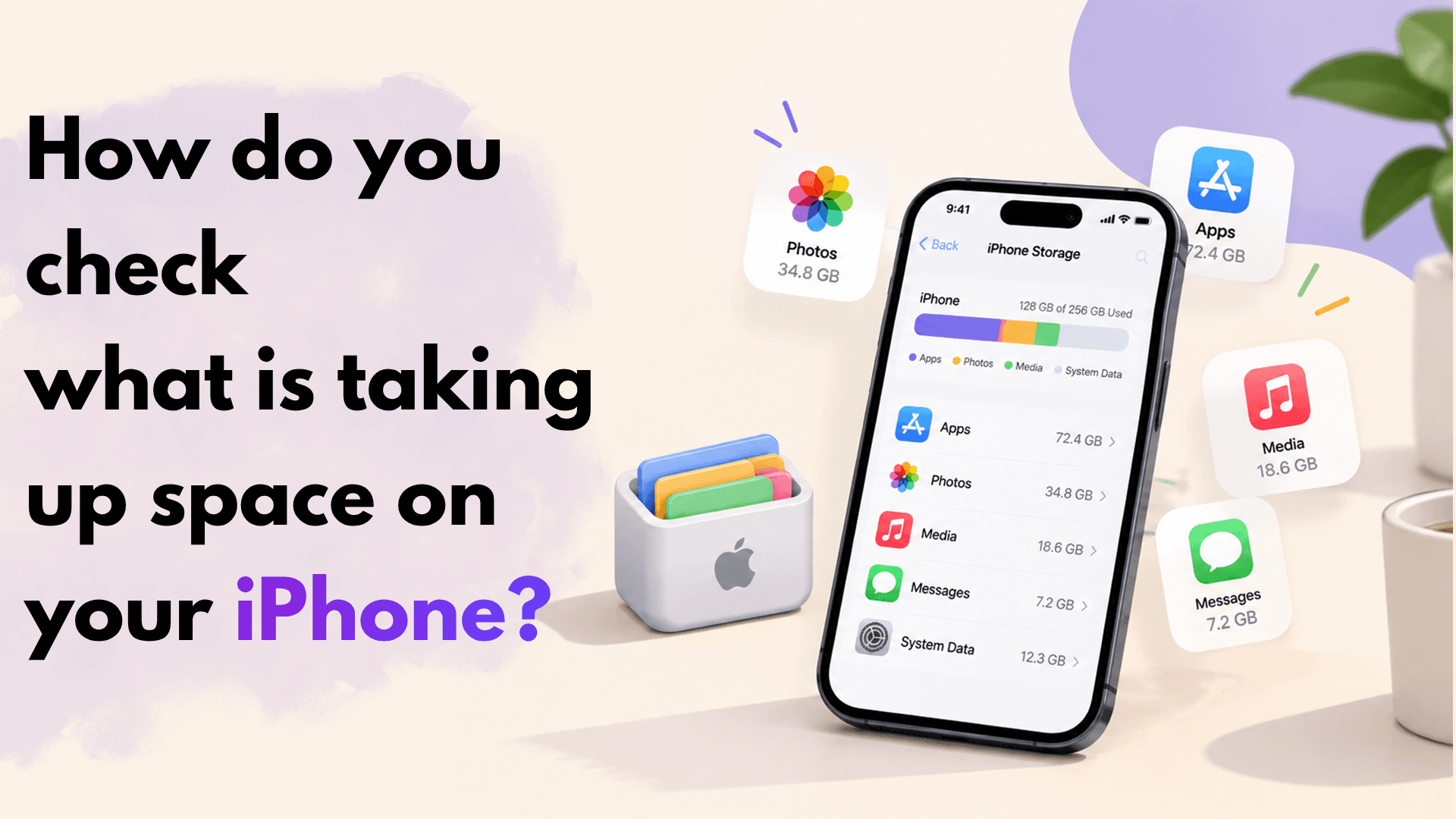
The most reliable starting point is Settings > General > iPhone Storage. Your iPhone shows available storage, storage-saving recommendations, and a list of apps ranked by how much space they use. Apple also notes that cached and temporary data may not always appear as app usage, so the numbers are best used as a guide rather than a perfect audit. (support.apple.com)
Spend a minute looking at the largest categories before deleting anything. If Photos is at the top, focus on image and video cleanup. If Messages, Podcasts, Music, Netflix, YouTube, or another media app is high on the list, downloads and attachments are probably the issue. This prevents the common mistake of deleting small apps while leaving several gigabytes of videos untouched.
A quick storage review should include:
- Open Settings.
- Tap General.
- Tap iPhone Storage.
- Review Apple’s recommendations.
- Tap the largest apps to see whether you can offload the app, delete it, or remove documents and data.
Start with Apple’s storage recommendations
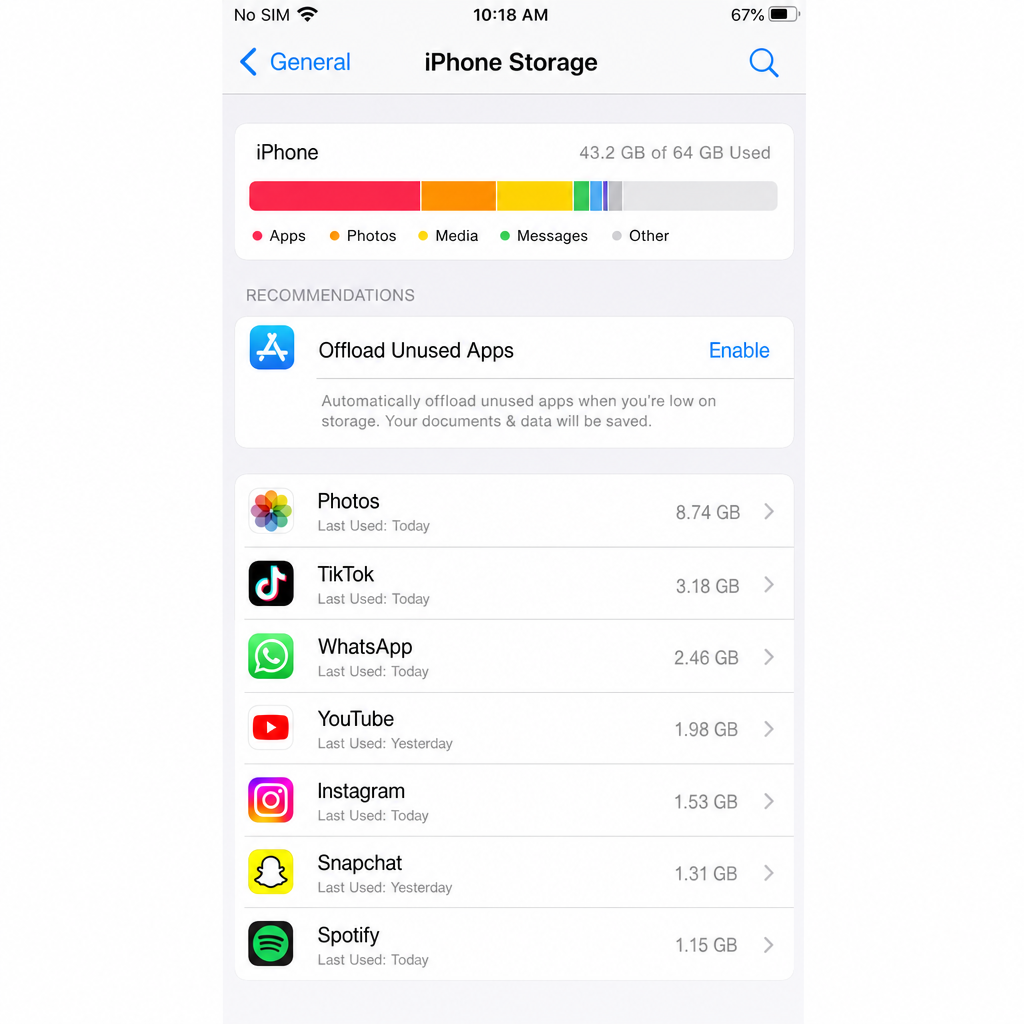
The iPhone Storage screen often suggests easy wins, such as reviewing large attachments or offloading unused apps. These recommendations are useful because they are based on what is actually stored on your device, not a generic cleanup checklist. If you are searching how to clear iPhone storage, this screen is the closest thing to a built-in cleanup dashboard.
Offloading is especially helpful. When you offload an app, iPhone removes the app itself but keeps its documents and data, so you can reinstall it later and usually pick up where you left off. Apple says iPhone can also automatically remove unused apps when storage is low while keeping your data, and the app icon remains with a cloud symbol for reinstallation. (support.apple.com)
Use this for apps you rarely open, such as seasonal travel apps, old games, shopping apps, or tools you only need occasionally. Avoid offloading apps you depend on offline, such as maps, banking apps, transit apps, or work tools, unless you know you can reinstall them when needed.
Reduce photo and video storage without losing your memories
Photos and videos often take up the most space because modern iPhone cameras create large, high-quality files. The safest way to reduce local storage is to use iCloud Photos with Optimize iPhone Storage. With this option, full-resolution originals are stored in iCloud, while smaller versions remain on your device when space is needed, as long as you have enough iCloud storage. (support.apple.com)
To turn it on, go to Settings > [your name] > iCloud > Photos, turn on syncing, then choose Optimize iPhone Storage. This is one of the best answers to how to free up storage on iPhone without deleting anything, because your photo library stays accessible while your device stores lighter copies.
You can also manually clean up your library:
- Delete blurry screenshots, duplicate shots, old screen recordings, and accidental videos.
- Review the Videos album first, because a few long clips can use more space than hundreds of photos.
- Empty Recently Deleted after you are sure you no longer need the files.
- Transfer large photo and video collections to a computer or external backup before removing local copies.
- Merge duplicate photos and videos if your iPhone offers that option in Photos.
Be careful with iCloud Photos before mass deleting. If iCloud Photos is syncing, deleting a photo on your iPhone may delete it from iCloud and other synced devices too. If your goal is to archive, copy files somewhere safe first.
Clean up Messages and large attachments
Messages can quietly grow for years, especially if you send videos, voice notes, GIFs, PDFs, and high-resolution images. If you want to know how to clear space on iPhone without touching your photo library, message attachments are a smart place to look.
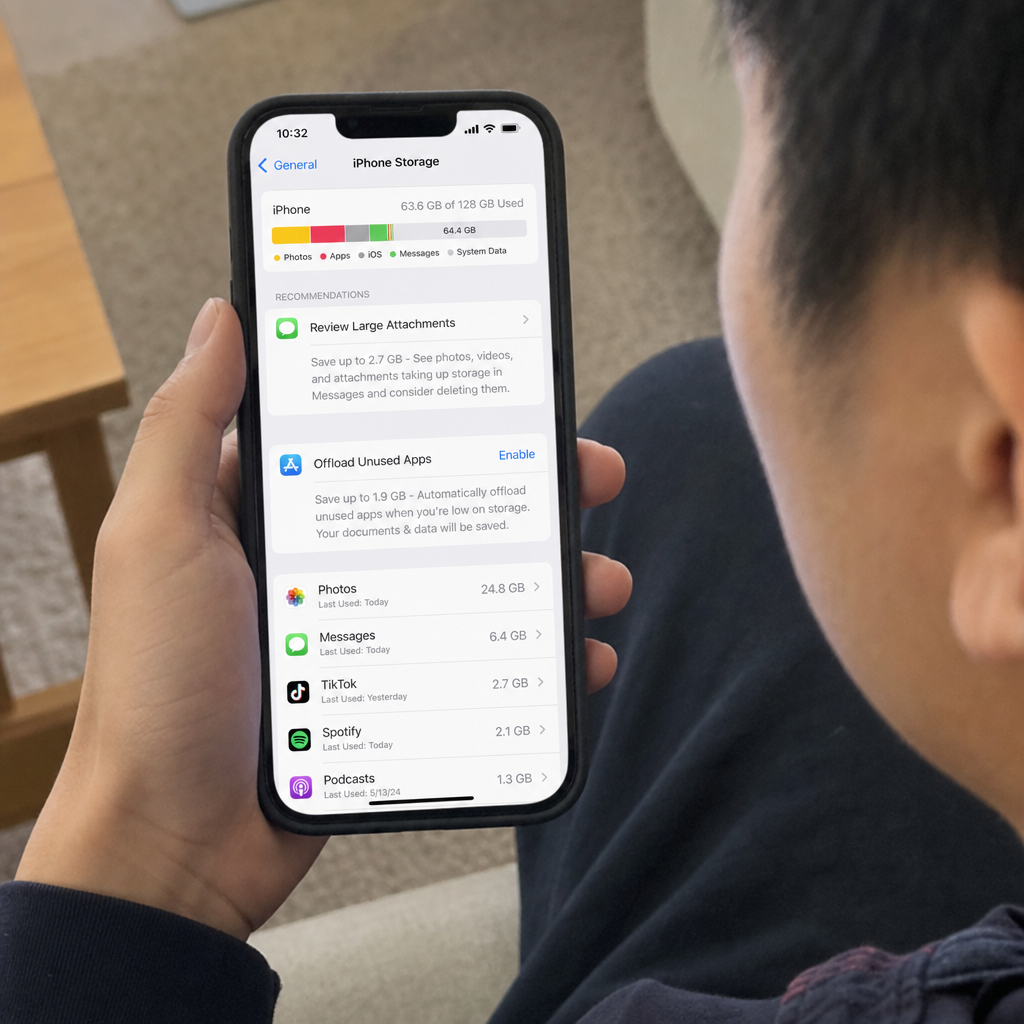
Open Settings > General > iPhone Storage, then check whether Messages appears near the top. Depending on your device and iOS version, you may see options to review large attachments. You can remove old videos, images, and files that no longer matter while keeping the conversations you care about.
A practical cleanup routine looks like this:
- Delete large attachments from old group chats.
- Remove one-time files such as event flyers, menus, memes, and delivery screenshots.
- Save important photos or documents before deleting them from a conversation.
- Consider shorter message history settings if you do not need years of texts on the device.
This is also a good privacy habit. Old attachments can contain addresses, receipts, personal documents, and work files that do not need to live on your phone forever.
Remove offline downloads from streaming and media apps
Downloaded movies, playlists, podcasts, audiobooks, maps, and courses are convenient, but they can quickly fill your device. The tricky part is that downloads are not always obvious from the Home Screen. A streaming app may look small until you open its storage details and discover several offline episodes inside it.
Check apps such as Apple TV, Netflix, Disney+, Spotify, Apple Music, Podcasts, YouTube, Audible, Google Maps, and any learning apps you use. Apple specifically lists downloaded videos, files, documents, messages, photos, videos, and apps as common sources of storage use on iPhone. (support.apple.com)
Good rules of thumb:
- Delete watched episodes and movies immediately after viewing.
- Remove podcast episodes after listening.
- Keep only the playlists you actually use offline.
- Clear old offline maps after a trip.
- Review course apps for downloaded lessons you have already completed.
This method is low-risk because most media can be downloaded again later. Just make sure you have access to Wi-Fi and the account that originally provided the content.
Clear browser cache and website data
If Safari has built up a lot of browsing data, clearing history, cookies, and cache may recover some space and fix website issues. Apple explains that clearing Safari history and data removes visited website history, recent searches, cookies, and certain website permissions from your iPhone, though it does not erase browsing histories stored independently by websites or inside other apps. (support.apple.com)
To clear Safari data, open Safari, go to History, choose the clear option, select a timeframe, and confirm. On some versions, you can also manage this through Safari settings. The exact storage gain varies, so treat this as a maintenance step rather than the main solution for a severely full phone.
Remember that clearing cookies may sign you out of websites. If you rely on saved sessions for work, school, or banking, make sure you know your passwords before clearing everything.
How can you free up storage without deleting apps or photos?
The best way to free storage without deleting personal content is to shift full-size files off the device, offload unused apps, and remove temporary or downloaded data. That means using iCloud photo optimization, clearing offline downloads, offloading apps instead of deleting them, and moving large files to cloud storage or a computer. Apple’s offload feature keeps app documents and data, while iCloud Photos can keep originals in iCloud and smaller versions on your iPhone. (support.apple.com)
Try these options before deleting anything meaningful:
- Turn on Optimize iPhone Storage for iCloud Photos.
- Offload apps you rarely use.
- Delete downloaded videos, songs, podcasts, and maps that are available online.
- Move files from the Files app to iCloud Drive, a computer, or another trusted backup.
- Clear Safari cache and website data.
- Restart your iPhone after cleanup so the system can refresh temporary storage.
This is the most balanced approach if you are asking how to free up storage on iPhone but do not want to lose memories, documents, or app data.
If your iPhone continues to struggle with storage even after cleanup, it may be worth considering whether it is time to upgrade. Before replacing your device, check its current resale value. Cashmycell’s iPhone resale value tool can help you estimate what your device is worth today and understand how its value may change over time.
Understand the difference between storage and memory
Many people search how to clean iPhone memory when they really mean storage. Storage is the space used by photos, apps, files, messages, and downloads. Memory, often called RAM, is what your iPhone uses to run apps and processes in the moment.
If your warning says storage is full, deleting files or optimizing storage is the right fix. If your phone feels slow, closing problematic apps, restarting the device, updating iOS, or freeing storage may help. Apple recommends checking iPhone Storage when a device is low on space and notes that iOS may remove items that can be downloaded again or are no longer needed. (support.apple.com)
In short, do not look for “memory cleaner” apps as your first solution. Many promise more than they deliver, and iPhone already manages memory automatically. Focus on storage cleanup, app behavior, and software updates instead.
A simple cleanup plan when iPhone storage is full
If you need a clear order of operations, use this checklist. It starts with the safest and highest-impact actions, then moves toward more selective deletion.
- Check iPhone Storage in Settings to identify the largest categories.
- Enable iCloud Photos optimization if photos and videos are the main problem.
- Delete large videos and screen recordings you no longer need.
- Offload unused apps instead of deleting app data.
- Remove offline downloads from streaming, music, podcast, map, and learning apps.
- Review Messages attachments and delete old large files.
- Clear Safari cache if browser data has built up.
- Move files to a computer or cloud storage before deleting local copies.
- Empty Recently Deleted in apps where applicable.
- Restart your iPhone and recheck storage.
Keep your iPhone from filling up again
Once you have solved the immediate problem, build a few habits that prevent another storage crunch. The easiest habit is to treat downloads as temporary. If you downloaded something for a flight, commute, workout, class, or trip, remove it once that moment has passed.
It also helps to review storage once a month. You do not need a deep clean every time; just look for sudden jumps. A messaging app, video editor, or streaming service can grow quickly if you use it heavily.
For long-term storage control:
- Keep iCloud Photos optimization on if your photo library is large.
- Avoid downloading entire seasons or huge playlists “just in case.”
- Delete duplicate screenshots after finishing a task.
- Export important videos instead of storing every original on your phone.
- Offload apps you only use a few times per year.
- Keep enough free space for updates, photos, and normal app activity.
The takeaway
Learning how to free up space on iPhone is mostly about knowing where to look. Start in iPhone Storage, follow the biggest numbers, and use built-in options like iCloud photo optimization and app offloading before deleting anything important.
If your iPhone storage is full right now, begin with photos, videos, downloads, and message attachments. Those areas usually offer the biggest gains with the least disruption, and they give you a cleaner, more reliable phone without sacrificing the files you still need.
For more insights on iPhone resale values, depreciation, and when to sell your device, explore Cashmycell articles.