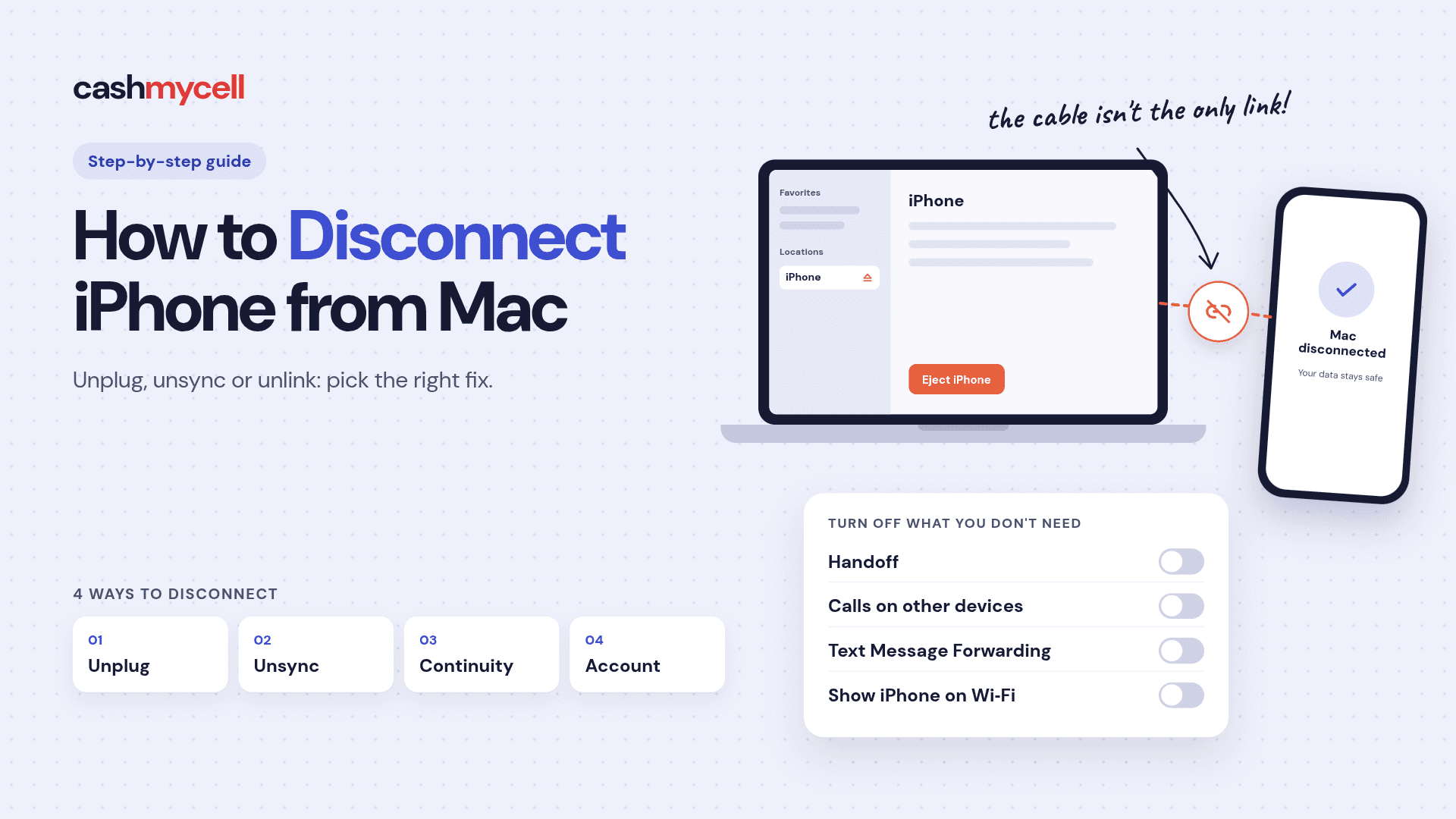
Your iPhone and Mac can be connected in more than one way: a USB cable, Finder syncing, iCloud, Handoff, calls, messages, AirDrop, hotspot, and your Apple Account. That means the right way to disconnect iPhone from Mac depends on what you want to stop: charging, file syncing, shared notifications, texts, calls, photos, or account access.
This guide walks through the practical options, from a quick physical disconnect to a fuller unlinking process. If you searched for how to unlink iPhone from MacBook, how to unsync an iPhone from a Mac, or simply how to disconnect phone from Mac, start with the section that matches your goal.
What does “disconnect” actually mean?
Disconnecting an iPhone from a Mac can mean several different things, and each one uses a different setting. Pulling out the cable stops the physical connection, but it does not turn off iCloud, Handoff, Messages, calls, AirDrop, or account-level links between your devices.
If your iPhone keeps appearing in Finder, receiving Mac-related prompts, sharing Safari tasks, or sending texts to your computer, you are dealing with a software connection rather than a cable connection. Apple’s Continuity features are designed to let Apple devices work together when they are signed in with the same Apple Account, often using Wi‑Fi and Bluetooth as part of the experience.
A helpful way to think about it is this:
- Temporary disconnect: unplug the cable, eject the device in Finder, or turn off Bluetooth/Wi‑Fi features for the moment.
- Sync disconnect: stop Finder syncing for photos, music, files, podcasts, or other content.
- Continuity disconnect: turn off Handoff, calls, texts, AirDrop access, hotspot sharing, or iPhone Mirroring-related features.
- Account disconnect: remove a device from your Apple Account list or sign out of iCloud on one device.
For most people, “disconnect phone from MacBook” really means turning off one or two annoying shared features, not fully separating the devices forever.
The fastest way to disconnect iPhone from Mac
If your iPhone is connected with a cable, start by safely ejecting it from Finder. Open Finder, look for your iPhone in the sidebar under Locations, click the Eject button next to it, and then unplug the cable. This is the cleanest quick option when you only want the Mac to stop accessing the iPhone during that session.
If you connected wirelessly through Finder syncing, connect the iPhone with a cable again, select it in Finder, and review the sync settings. Finder is where modern macOS handles manual device syncing, including content such as photos, music, movies, and other categories depending on your setup. Apple notes that Finder syncing can be turned off for synced photos, and the same general principle applies: select the device, adjust the relevant sync tab, then apply the change.
Use this quick checklist first:
- Eject the iPhone in Finder before unplugging it.
- Unplug the USB-C or Lightning cable from the Mac.
- Close Finder windows showing the iPhone.
- Turn off Wi‑Fi syncing if the phone keeps reappearing wirelessly.
- Disable specific Continuity features if calls, texts, or handoff prompts continue.
This solves the basic “disconnect iPhone from MacBook” problem without changing your Apple Account or deleting data.
How to unsync an iPhone from a Mac without losing everything
To unsync an iPhone from a Mac, you usually need to turn off specific sync categories rather than remove the entire phone at once. Connect the iPhone to the Mac, open Finder, select the iPhone in the sidebar, then review each tab such as General, Music, Photos, Files, or other available categories. Uncheck the content you no longer want synced, choose the appropriate removal option if prompted, and click Apply.
Be especially careful with photos. If your iPhone has photos that were manually synced from the Mac through Finder, turning off that Finder sync can remove those synced items from the iPhone. Apple’s photo-sync guidance says that when you turn off Finder photo syncing, the device removes those synced photos, so make sure you have copies where you want them before applying the change.
A safer unsync workflow looks like this:
- Back up important files first. If you are not sure whether photos or documents exist only on one device, copy them somewhere safe before changing sync settings.
- Review iCloud separately. iCloud syncing is not the same as Finder syncing. Turning off Finder sync will not necessarily stop iCloud Photos, iCloud Drive, Contacts, Calendars, or Notes from updating across devices.
- Disable one category at a time. Start with the specific thing you want to stop, such as photos or music, instead of changing every setting at once.
- Read removal prompts carefully. If macOS asks whether to remove synced content from the iPhone, pause before confirming.
- Check the iPhone afterward. Open Photos, Music, Files, or the relevant app to confirm the result.
This is the best approach if your main question is how to unsync iPhone from MacBook while keeping both devices usable.
Stop your iPhone from appearing in Finder wirelessly
If your iPhone keeps showing up in Finder even when it is not plugged in, Wi‑Fi syncing may be enabled. Connect the iPhone to your Mac with a cable, select it in Finder, and check the General area for wireless display or sync options. If you see an option to show the iPhone when on Wi‑Fi, turn it off and apply the change.
After that, eject the iPhone and unplug it. Your Mac should no longer present the iPhone as an available Finder device unless you connect it again by cable or turn wireless syncing back on.
This step is useful when you want to disconnect phone from Mac but still keep iCloud, Messages, and other Apple services active. It only affects the Finder-style device connection, not every shared Apple feature.
Turn off Handoff and shared app activity
Handoff lets you start supported work on one Apple device and continue it on another. It is convenient when you want Safari pages, emails, documents, or app tasks to move between devices, but it can feel intrusive if you are trying to separate your iPhone and Mac. Apple’s Handoff setup requires compatible devices, the same Apple Account, and Handoff enabled on each device.
To turn it off on a Mac:
- Open System Settings.
- Go to General.
- Open AirDrop & Continuity or the similarly named Continuity panel.
- Turn off Allow Handoff between this Mac and your iCloud devices.
To turn it off on iPhone:
- Open Settings.
- Tap General.
- Tap AirPlay & Continuity or AirPlay & Handoff.
- Turn off Handoff.
Once Handoff is off, your iPhone and Mac should stop offering those “continue here” prompts for supported apps. This is one of the most common fixes for people who want to disconnect iPhone from Mac without signing out of iCloud.
Disable calls and text messages on your Mac
Phone calls and messages are another reason your Mac may feel too connected to your iPhone. If your Mac rings when your iPhone rings, or if SMS messages show up on your computer, you can turn those features off without unlinking everything.
On iPhone, check these areas:
- Phone calls: Open Settings > Apps > Phone or Settings > Phone, then look for calling options such as Calls on Other Devices. Turn off your Mac or disable the feature entirely.
- Text message forwarding: Open Settings > Apps > Messages or Settings > Messages, then look for Text Message Forwarding and turn off the Mac.
- iMessage on Mac: On the Mac, open the Messages app, go to Settings, and review iMessage sign-in and receiving options.
- FaceTime calls: On the Mac, open FaceTime, go to settings, and disable iPhone cellular calling if it is available.
Apple describes iPhone-to-Mac calling and texting as part of the broader ability to allow calls and messages on iPad and Mac, so disabling these controls is more precise than removing your Apple Account from the Mac.
This is often the right answer when someone asks how to unlink iPhone from MacBook because they are tired of private texts, verification codes, or incoming calls showing up on a shared computer.
Separate iCloud syncing from device syncing
Many people turn off Finder sync and then wonder why contacts, photos, notes, or files still appear on both devices. The reason is usually iCloud. Finder syncing and iCloud syncing are different systems.
Finder syncing is local device-to-computer syncing. iCloud syncing updates information through Apple’s cloud services across devices signed in to the same Apple Account. For example, if iCloud Photos is enabled, your photo library can stay updated across Apple devices through iCloud rather than through a cable-based Finder sync.
To reduce iCloud sharing on iPhone:
- Open Settings.
- Tap your name.
- Tap iCloud.
- Review categories such as Photos, iCloud Drive, Contacts, Calendars, Notes, Safari, and Messages.
- Turn off only the categories you no longer want synced.
To reduce iCloud sharing on Mac:
- Open System Settings.
- Click your name.
- Open iCloud.
- Review and disable the categories you want to stop syncing.
Do not switch off everything unless you understand the tradeoff. Some iCloud categories are used for backup, recovery, passwords, device location, and app data. A selective approach usually works better than a full account sign-out.
Remove a MacBook or iPhone from your Apple Account
If you want a stronger separation, you can remove a device from your Apple Account device list. On iPhone, go to Settings, tap your name, scroll to the device list, choose the Mac, and tap Remove from Account if available. On Mac, open System Settings, click your name, scroll to the device list, select the iPhone, and choose Remove from Account if available. Apple’s account security guidance describes this as the way to remove devices you do not want connected to your Apple Account.
This is most useful when:
- You sold, gave away, or no longer use a device.
- A device appears in your Apple Account list and you do not recognize it.
- You want to stop that device from being treated as trusted for account verification.
- You are separating personal and work devices.
- You are preparing a Mac or iPhone for another user.
Important: removing a device from the account list is not the same as erasing it, signing out locally, or turning off every sync feature. Apple notes that if a removed device reconnects while it is still signed in, it may appear in the list again.
For a device you still own, consider signing out of your Apple Account on that device if your goal is a full break. For a device you no longer control, update your Apple Account password and review trusted devices.
A practical disconnect plan for different situations
The best method depends on why you want to disconnect phone from MacBook. Use this quick comparison before changing deeper settings.
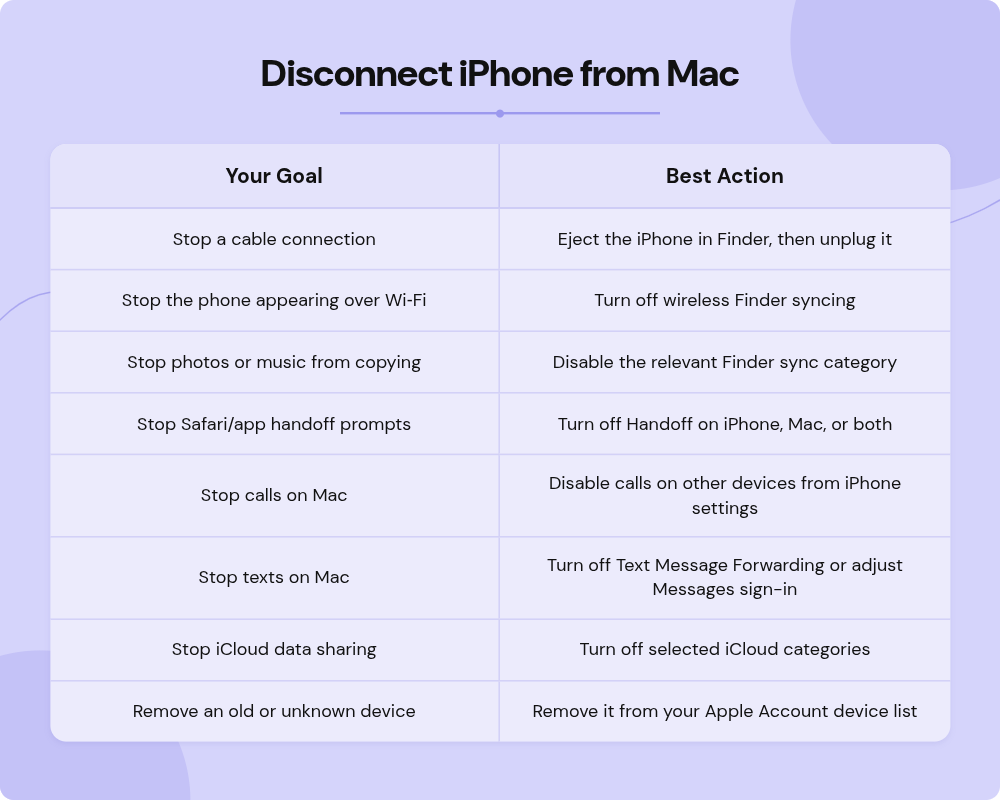
This layered approach helps you avoid overcorrecting. You may only need one setting, not a complete reset.
Common mistakes to avoid
The biggest mistake is assuming there is one universal “unlink” button. Apple’s device ecosystem is built from several overlapping services, so one setting rarely controls everything. If you only unplug the cable, iCloud and Continuity may continue. If you only turn off Handoff, Finder sync may still work when you plug the phone in.
Another mistake is turning off iCloud features without checking where your data lives. Before disabling Photos, iCloud Drive, Notes, or Messages in iCloud, confirm whether the content is stored locally, in iCloud, or synced from another device. If you are unsure, make a backup first.
Finally, do not remove a device from your Apple Account just to stop calls or text notifications. That is a broader account-level action. For everyday annoyance, feature-specific settings are safer and easier to reverse.
Final takeaway
To disconnect iPhone from Mac, start with the smallest change that solves the problem. Eject and unplug for a temporary disconnect, turn off Finder syncing to unsync content, disable Handoff or calls and texts to reduce Continuity, and use Apple Account removal only when you want a stronger separation.
If you are deciding how to unsync an iPhone from a Mac, take it category by category. That keeps your data safer, your devices cleaner, and your MacBook from feeling more connected to your iPhone than you want.