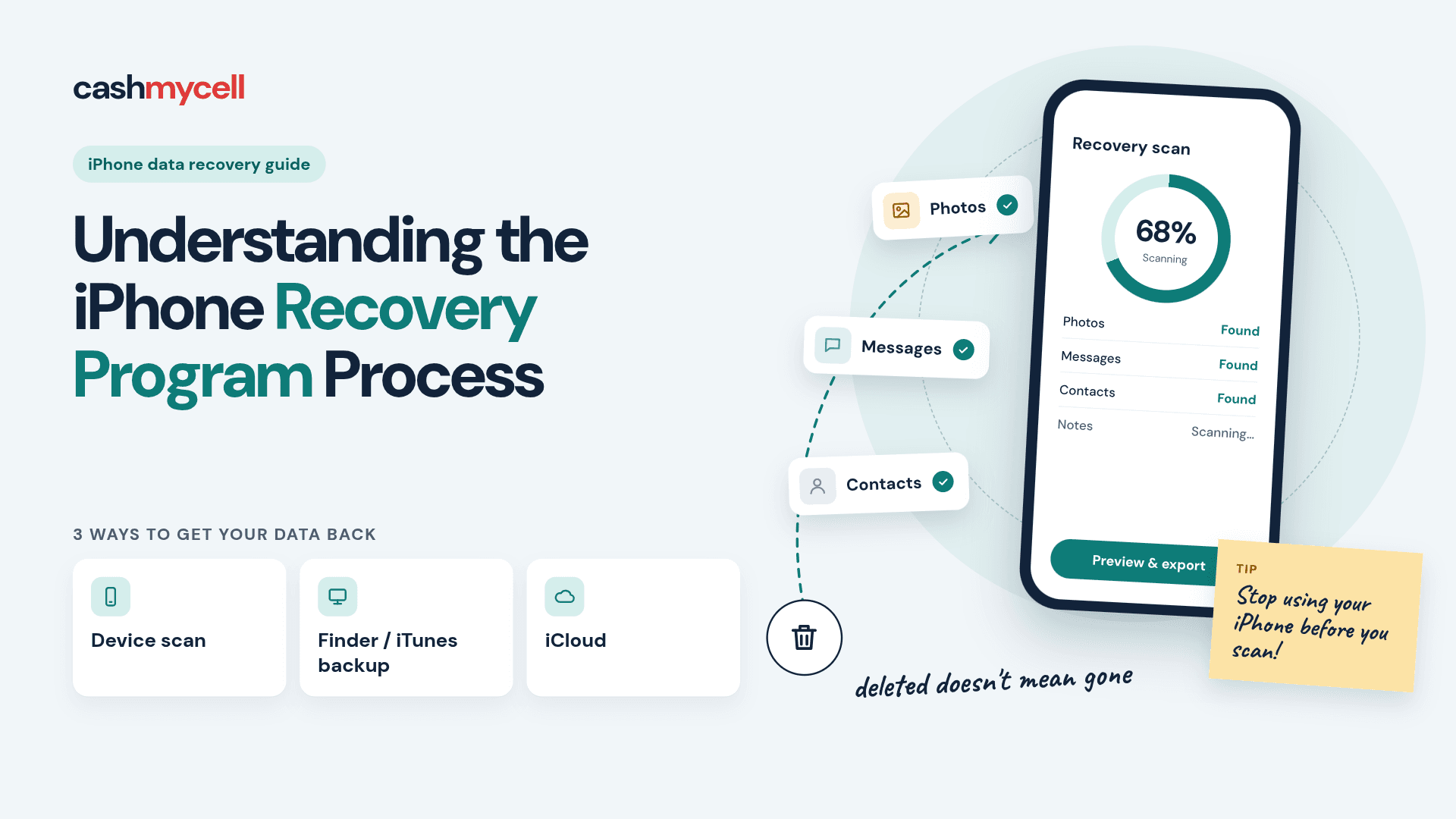
Losing iPhone data can feel urgent, especially when the missing files include photos, messages, contacts, notes, or work records. An iPhone recovery program is designed to scan your device, iCloud account, or computer backups and help you retrieve data that may still be recoverable. The right approach depends on what happened, whether you have a backup, and whether the phone still turns on.
Before choosing any iphone recovery software, the most important step is to stop using the device as much as possible. New photos, app activity, updates, and downloads can overwrite the data you want back, making recovery harder or impossible.
What does an iPhone recovery program actually do?
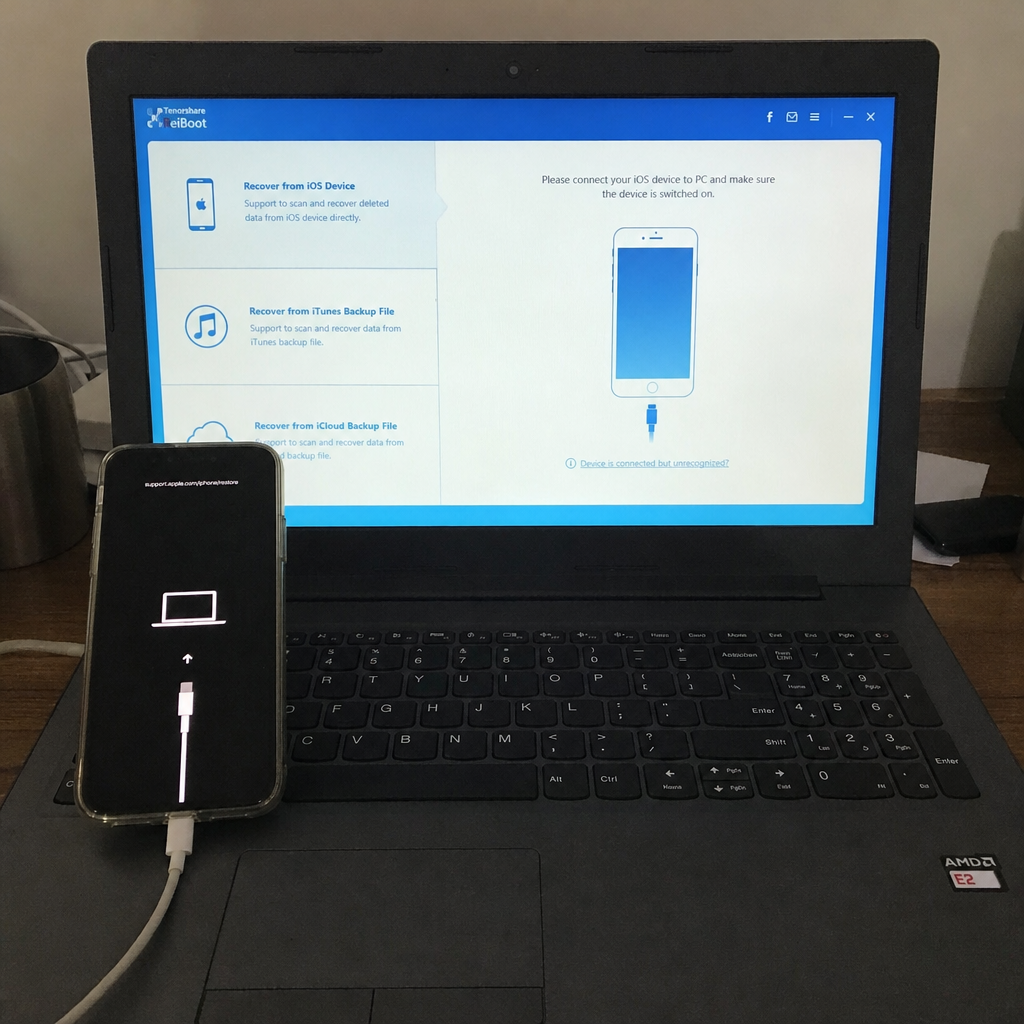
An iPhone recovery program attempts to locate deleted, lost, damaged, or inaccessible data from an iPhone or from backups linked to that iPhone. It usually works in one or more ways: scanning the device directly, extracting files from an iTunes or Finder backup, or pulling available data from iCloud. Some ios recovery utilities also include system repair features for phones stuck during updates, boot loops, or recovery mode.
It helps to understand that recovery software is not magic. When data is deleted, it may remain in storage temporarily, but iOS, apps, and sync services can change what is still available. That is why a recent accidental deletion is often easier to recover from than a factory reset, severe corruption, or long-term overwritten data.
The main situations that call for iPhone recovery software
People usually search for iphone data recovery after one of a few common events. Each scenario calls for a slightly different recovery path, so identifying the problem first can save time and reduce frustration.
Common situations include:
- Accidental deletion: You deleted photos, messages, notes, or contacts and later realized you needed them.
- Failed iOS update: The phone froze, restarted repeatedly, or lost data after an update attempt.
- Damaged device: Water exposure, impact damage, or a broken screen made the device difficult to access.
- Corrupted backup: An iTunes, Finder, or iCloud backup exists but will not restore cleanly.
- Factory reset: The iPhone was erased, sometimes before the user checked whether the right backup existed.
- App-specific loss: WhatsApp, social app data, attachments, or call logs disappeared after reinstalling or syncing.
A simple deletion may only require a consumer recovery tool. Physical damage, severe corruption, or business-critical evidence may call for a professional data recovery service instead of repeated software attempts.
Recovery methods and when each one makes sense
Most iphone recovery app and desktop recovery tools offer several modes. Choosing the right mode is often more important than choosing the most expensive tool.
Direct device scanning
Direct scanning connects the iPhone to a Mac or Windows computer and searches for recoverable files on the device. This method is useful when you do not have a backup or when the backup is too old. It can help with recently deleted data, but it depends heavily on whether the missing information has been overwritten.
Direct scanning may require the phone to turn on, unlock, and trust the computer. If the screen is broken or the device will not boot, this method may not work without repair or professional help.
iTunes or Finder backup extraction
Backup extraction is often safer because it does not write new data to the iPhone. On macOS Catalina and later, local iPhone backups are managed through Finder; on Windows and older macOS versions, iTunes is commonly used. A data recovery program for iphone can inspect these backups and let you preview individual files instead of restoring the entire backup to the phone.
This is useful when you need only a few items, such as a conversation, photo album, or contact list. Encrypted backups may also contain more categories of data, but you must know the backup password.
iCloud recovery
iCloud recovery looks for synced or backed-up data in your Apple account. It can be convenient because you may not need the original phone in working condition. However, iCloud data can be affected by sync behavior: deleting something from one device may remove it from other synced devices too.
Use iCloud recovery when the phone is missing, broken, or erased but your Apple account still contains the information you need. Always check recently deleted folders in Photos, Notes, and Files before running more complex tools.
How should you choose the right recovery tool?
Choose iphone repair software or recovery software by matching it to your exact data loss scenario, computer type, comfort level, and budget. A beginner with a recent deletion needs a different experience from a technician working with corrupted backups or fragmented files. The best tool is the one that supports your device, scans the right source, previews the data you need, and gives clear limits before payment.
Use this decision framework before installing anything:
- Identify the source of recovery. Decide whether the missing data is most likely on the phone, inside a local backup, or in iCloud.
- Check device access. Can the iPhone turn on, unlock, and connect to a trusted computer? If not, software options may be limited.
- List the data types needed. Photos, videos, messages, contacts, notes, calendars, call logs, and app data are not always supported equally.
- Confirm platform compatibility. Some tools work best on Mac, while others support Windows with fewer features.
- Preview before paying. A trustworthy recovery workflow should show what it found before asking you to commit.
- Read licensing terms carefully. Recovery tools may use subscriptions, lifetime licenses, freemium scans, or feature-limited trials.
- Avoid repeated risky attempts. If data is extremely important, do not keep trying random tools. Escalate to a specialist.
This framework also helps you avoid a common mistake: buying software because it promises broad recovery, then discovering it does not support your exact file type, backup format, or iOS situation.
Popular categories of iOS recovery utilities
Different tools tend to serve different users. Rather than treating every product as interchangeable, look at the category it belongs to and the kind of recovery experience it offers.
Beginner-friendly guided tools
Some utilities, such as EaseUS MobiSaver-style products, focus on guided workflows. They walk users through device scan, backup scan, or iCloud recovery with a wizard-like interface. This can be helpful if you are nervous about data recovery and want fewer technical decisions.
The trade-off is that guided tools may feel slower or less flexible in complex cases. They are usually best for common losses, such as deleted photos, contacts, or messages, rather than deeply damaged databases.
Mac-focused recovery programs
Mac users often have access to polished tools such as Disk Drill-style recovery apps or other Mac-first products. These may offer simple scanning, backup extraction, and extra disk utilities in one interface. They are practical when your recovery workflow involves a MacBook, local Finder backups, or encrypted backup access.
If you use a Mac, confirm whether the tool supports your iPhone model and iOS version. Also check whether it can recover directly from the device, from backups, or only from certain data categories.
Advanced and complex-case tools
Some programs are built for difficult situations, including corrupted backups, damaged databases, incomplete exports, or fragmented media. Stellar-style recovery tools and similar advanced utilities may provide deeper scans and more technical options. These can be useful when standard scans show missing or incomplete results.
The downside is time and complexity. Deep scans can take longer, and repaired media may not always return in perfect condition. For legal, business, or irreplaceable data, advanced software should be used carefully and with copies of backups whenever possible.
Tools with iOS system repair features
Some iphone repair software combines recovery with system repair. Products in this category may help when an iPhone is stuck on the Apple logo, trapped in recovery mode, or unstable after an update. They can be useful when the first goal is getting the device accessible again.
However, system repair and data recovery are different tasks. Some repair modes may reset settings or risk data loss, so read each option carefully before clicking. When the data matters more than the device, prioritize non-destructive recovery methods first.
Mac and Windows workflows are not always the same
Mac users often have a smoother path because iPhone backup management is integrated into Finder, and many consumer recovery tools are designed with macOS in mind. A typical Mac workflow involves connecting the iPhone, trusting the computer, scanning the device or Finder backup, previewing recoverable items, and exporting selected files to a safe folder.
Windows users can still recover iPhone data, but the path may require more attention. iTunes backups may be stored locally, and some tools can scan those backups directly. In more technical cases, users may copy backup files and inspect app databases with SQLite viewers, but this is not beginner-friendly and should be done on duplicate backup files, never the only copy.
A practical Windows checklist looks like this:
- Install or update iTunes only from a trusted source.
- Create a local backup if the phone is still accessible.
- Make a separate copy of the backup folder before experimenting.
- Use recovery software that clearly supports Windows and your target data type.
- Avoid restoring a backup to the iPhone until you have exported important files.
- If using manual database tools, work only on copied files and document every change.
This extra caution matters because one wrong restore or sync can replace the data you hoped to recover.
Best practices before running any iPhone data recovery scan
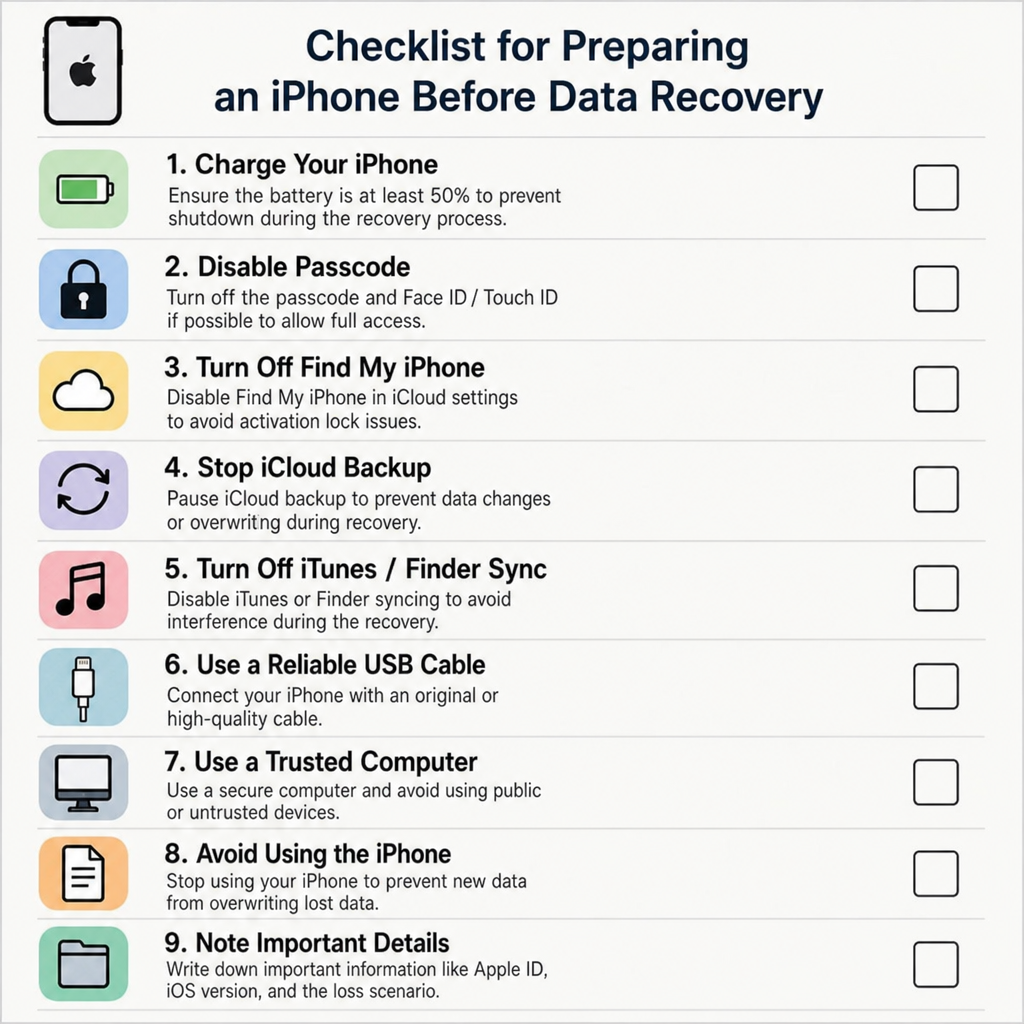
Good preparation can improve your chances and reduce the risk of making the loss worse. Even simple steps matter because iPhones are constantly syncing, indexing, backing up, and rewriting data.
Before you scan, do the following:
- Stop using the iPhone. Avoid taking photos, installing apps, recording videos, or downloading files.
- Turn off unnecessary syncing if appropriate. If deletion is spreading through synced devices, pause and assess before reconnecting everything.
- Check built-in recovery folders. Photos, Notes, Files, Mail, and some apps have recently deleted areas.
- Do not factory reset again. Repeated resets rarely help recovery and can reduce options.
- Use a reliable cable and computer. Connection drops can interrupt scans and create confusion.
- Save recovered files outside the iPhone. Export to a computer drive or external storage first.
- Document what happened. Note the approximate deletion time, last backup date, and any update or repair attempts.
These steps are especially important if the phone contains sensitive business, legal, or financial information. In those cases, consider whether you need a chain of custody, secure storage, or professional support rather than a standard consumer tool.
Common mistakes that reduce recovery chances
The biggest mistake is continuing to use the iPhone normally after data disappears. Every message, photo, app update, and sync event can change the storage environment. Even if a tool is strong, it cannot recover data that has already been overwritten.
Another common mistake is restoring the wrong backup. If you restore an old backup over the current phone, you may lose newer information while still failing to retrieve the missing files. It is usually better to preview and export from a backup first.
Users also get caught by unclear pricing. A free scan may show recoverable files, but exporting them may require payment. That is not automatically bad, but you should know the terms before relying on the tool during an emergency.
When professional recovery is the better choice
Software is a good first option for accidental deletion, accessible devices, and readable backups. Professional recovery becomes more appropriate when the iPhone is physically damaged, exposed to liquid, unable to power on, or contains high-stakes data. It is also worth considering if several reputable tools fail to find the files.
Do not keep plugging in a wet, swollen, overheated, or severely damaged phone. In those cases, the priority is preventing further hardware damage. A professional service may be able to stabilize the device, repair access enough to extract data, or advise when recovery is unrealistic.
Building a safer backup habit after recovery
The best recovery process ends with prevention. Once you retrieve your files, set up a backup routine that does not depend on memory or luck. Use iCloud Backup, local encrypted backups, or a trusted backup management tool to keep more than one recovery path available.
For many people, a practical setup is simple: automatic iCloud backup for convenience and occasional encrypted local backups for depth. Encrypted local backups can preserve more sensitive categories of information, while cloud backups are easier to access if the device is lost or destroyed. The key is checking that backups actually complete and knowing where they are stored.
Key takeaway
An iphone recovery program can be extremely useful, but the process works best when you move carefully. Identify the loss scenario, stop using the device, choose the recovery source, preview results, and export recovered files safely before restoring anything. Whether you use a beginner-friendly iphone recovery app, advanced ios recovery utilities, Mac-focused software, or a professional service, the smartest choice is the one that protects the remaining data while giving you the clearest path to recovery.