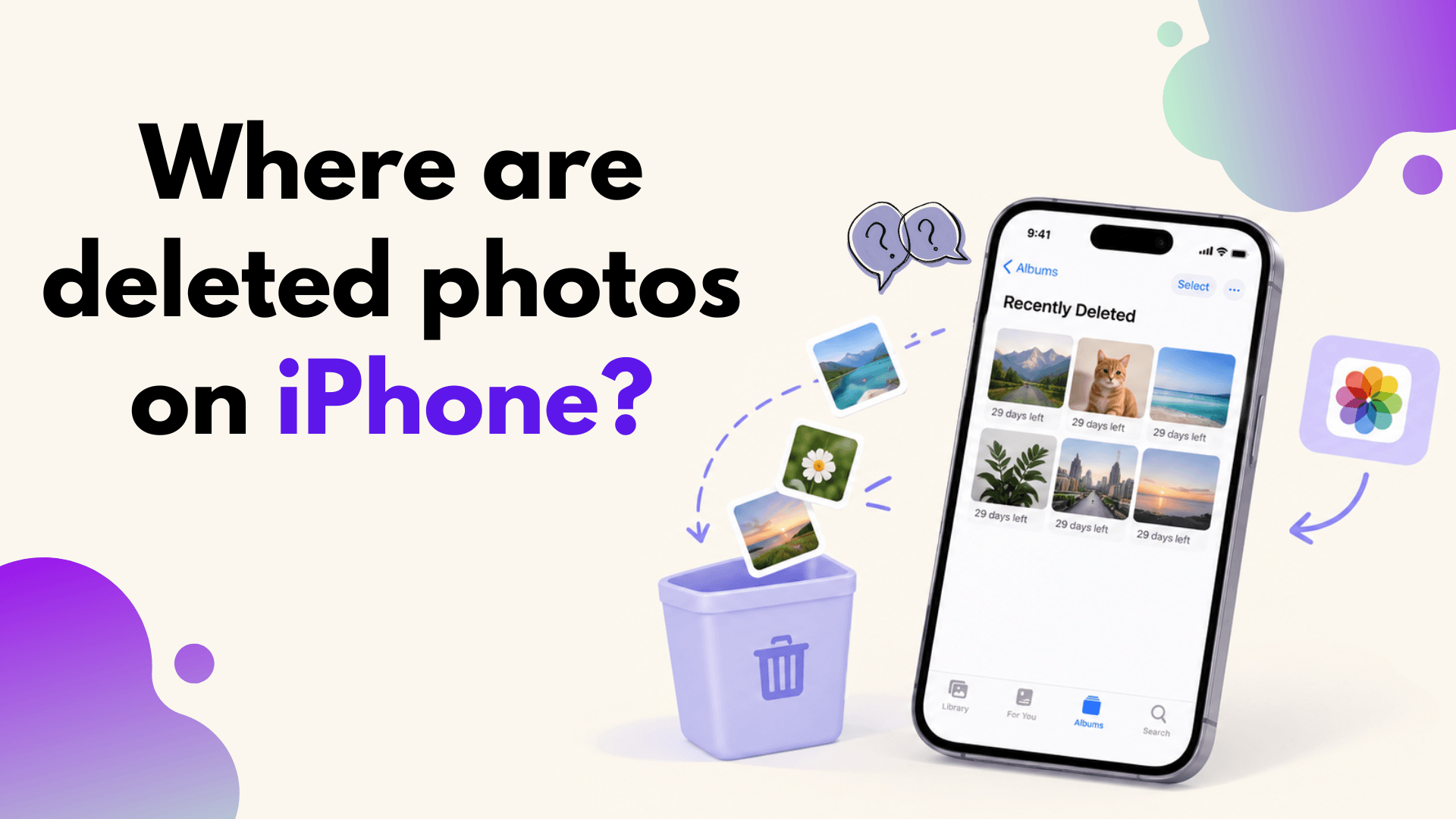
Deleted photos on iPhone usually go to the Recently Deleted album inside the Photos app, under Utilities. Apple says deleted photos and videos remain there for 30 days before they are permanently removed, and the album may require Face ID, Touch ID, or your passcode to open. If you are asking, “where are deleted photos on iPhone?” this is the first place to look before trying more complicated recovery methods. (support.apple.com)
To find it, open Photos, tap Collections, swipe up if needed, and look under Utilities for Recently Deleted. Depending on your iOS version and settings, you may need to tap View Album and unlock it. Once inside, you can preview what is still recoverable and decide whether to restore one image, several images, or everything in the album.
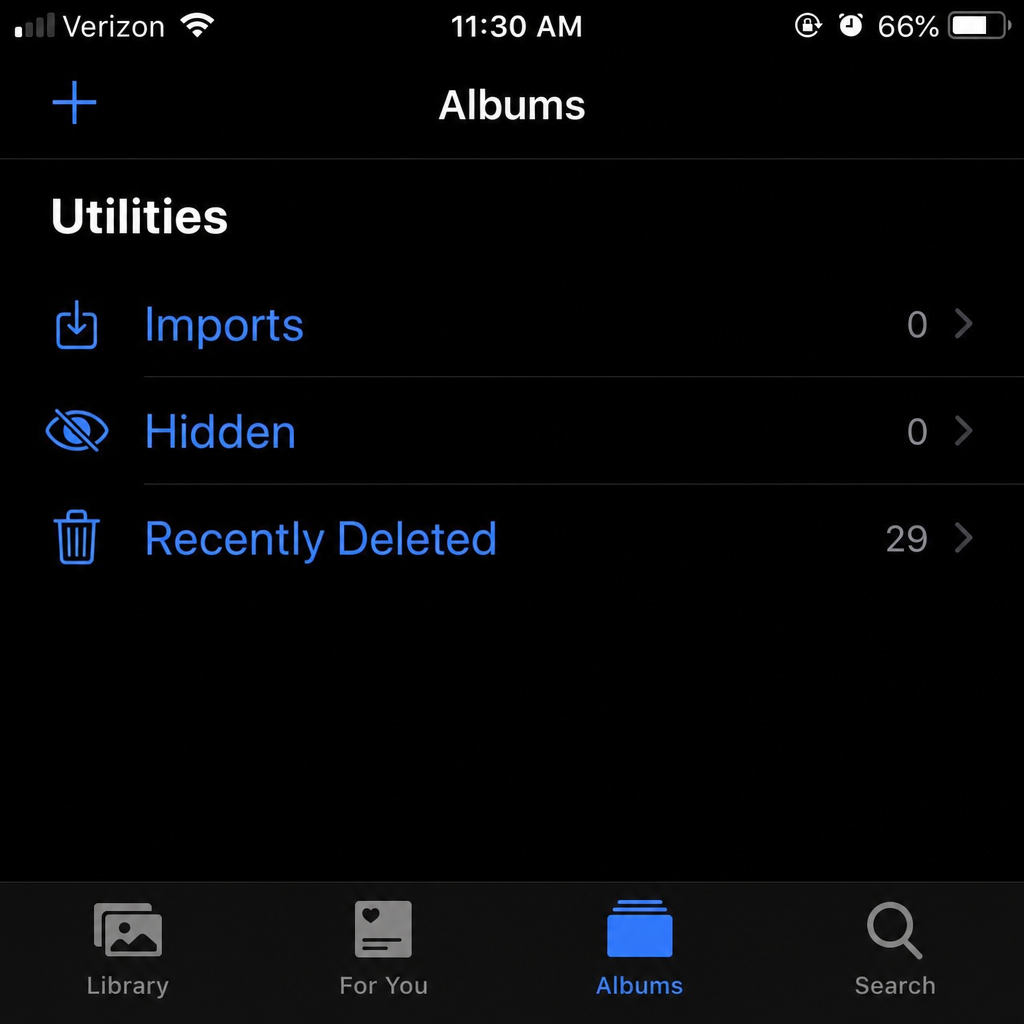
This album is also important because deleting something from it is different from deleting it from your main Library. A photo removed from your Library is still recoverable during the Recently Deleted window. A photo permanently deleted from Recently Deleted is generally not available through that same route.
How to recover deleted photos from the Photos app
The fastest way to recover deleted photos iPhone users can try is built into the Photos app. This method works when the pictures are still inside Recently Deleted and have not passed the recovery period. Apple notes that when you recover photos or videos from Recently Deleted, they return to your Library. (support.apple.com)
Follow these steps:
- Open the Photos app.
- Tap Collections at the bottom of the screen.
- Scroll or swipe up to the Utilities section.
- Tap Recently Deleted.
- Tap View Album if prompted, then unlock with Face ID, Touch ID, or your passcode.
- Tap Select.
- Choose the photos or videos you want back.
- Tap the More button, then tap Recover.
- Confirm that you want to recover the selected items.
If you want to restore everything in the album, look for the option to recover all items instead of selecting each photo manually. After recovery, check your Library, Recents, or the original date area where the photo belongs. Restored photos may not always appear at the very top if they were taken weeks, months, or years ago.
This is the answer to common searches like “how can I recover my deleted pictures on my iPhone” and “how do I recover deleted pictures from my iPhone.” Start with Recently Deleted because it is the official, lowest-risk method and does not require third-party software.
iCloud Photos can change what you see
If iCloud Photos is turned on, deleting a photo on one device can delete it from other devices signed in with the same Apple Account. That means a picture deleted from your iPhone may also disappear from your iPad, Mac, or iCloud Photos online if they are all syncing. Apple’s guidance is clear that iCloud Photos keeps deletions in sync across devices. (support.apple.com)
This can be helpful or confusing. It is helpful because recovering the photo in Recently Deleted can make it available again across synced devices. It is confusing because checking another Apple device may not work if the deletion is already synced everywhere.
Before you panic, check these details:
- Same Apple Account: Make sure you are signed in with the Apple Account where the photos were originally stored.
- iCloud Photos status: Go to Settings and check whether iCloud Photos is enabled.
- Connection quality: If your iPhone has a poor connection, recovered photos may take time to reappear across devices.
- Storage limits: If iCloud or device storage is full, syncing behavior may feel delayed or inconsistent.
- Photo date: Recovered pictures may return to their original chronological position, not the day you recovered them.
If you are wondering how to recover my photos from iPhone after deleting them on another Apple device, still check Recently Deleted on your iPhone and on iCloud Photos. The synced deletion may be recoverable during the same recovery window.
What if the photos are not in Recently Deleted?
If the photos are not in Recently Deleted, they may be hidden, stored in iCloud Photos under a different account, saved in another app, included in a backup, or already permanently deleted. Apple also notes that iPhone can have a Recovered collection for previously lost or damaged photos in certain situations, and deleting from that Recovered album is permanent. (support.apple.com)
Start by checking whether the photos are actually hidden rather than deleted. In Photos, go to Utilities and look for Hidden. Like Recently Deleted, the Hidden album may require Face ID, Touch ID, or your passcode. If you find the missing image there, open it, tap the More button, and choose Unhide.
Next, search your Library. Use the Photos search feature for a person, place, object, date, or keyword. Sometimes a photo feels “deleted” because it is buried in a large library or sorted by its original capture date.
You can also check other likely locations:
- Messages: The photo may still be in a conversation thread.
- Files app: You may have saved a copy outside Photos.
- Shared albums: Someone else may have a shared version available.
- Email attachments: The image may still be attached to a sent or received message.
- Cloud storage apps: Google Photos, Dropbox, OneDrive, or similar apps may have backed it up.
- A Mac or PC: If you imported photos before deleting them, a copy may still be on your computer.
This is where the exact wording of the problem matters. “How can I recover deleted pics from my iPhone?” may have a different answer than “Where did my missing photos go?” Deleted photos usually point to Recently Deleted. Missing photos may involve hiding, syncing, searching, or account issues.
Restoring from an iPhone backup is a bigger step
If the deleted photos are not in Recently Deleted, a backup may help, but it is not always the simplest option. Restoring an iPhone backup can replace current data with data from the backup, so you should understand the trade-off before using it. If the backup was made before the photos were deleted, it may contain the images, but it may not include newer items created after that backup.
Before restoring, consider safer alternatives. Check iCloud Photos, other devices, cloud apps, and your computer first. If you do decide to use a backup, review what type of backup you have, when it was made, and whether the missing photos were likely included at that time.
A practical backup checklist:
- Confirm the backup date is earlier than the deletion.
- Save or export any new photos, messages, and files you cannot afford to lose.
- Check whether iCloud Photos was enabled, because photos synced with iCloud may not be stored in the same way as photos only kept locally.
- Make sure you know your Apple Account password and device passcode.
- Allow enough time for the restore and post-restore syncing to complete.
This method is best treated as a last resort, not the first move. For most everyday accidents, Recently Deleted is faster, safer, and more direct.
Avoid mistakes that make recovery harder
When you realize important photos are gone, slow down before tapping through menus. Many people make recovery harder by permanently deleting items from Recently Deleted, switching accounts without checking sync settings, or installing untrusted recovery tools in a panic.
Use this quick do-and-don’t list:
Do:
- Check Recently Deleted as soon as possible.
- Recover the photos before the 30-day window ends.
- Look in Hidden, Shared Albums, Messages, Files, and cloud storage apps.
- Verify that you are using the correct Apple Account.
- Back up current important data before attempting a full restore.
Don’t:
- Empty Recently Deleted unless you are sure you no longer need those photos.
- Assume another Apple device still has the image if iCloud Photos is syncing deletions.
- Restore an old backup without saving newer data first.
- Trust apps that promise guaranteed recovery without understanding the risks.
- Keep taking unnecessary actions on the phone if the photos are extremely important and you plan to ask a professional for help.
A calm process gives you the best chance of success. The built-in recovery tools are simple, but they depend on timing and on whether the photo was permanently removed.
Once your photos are safely recovered and backed up, if you are planning to upgrade your iPhone, it is also worth checking what your current device is worth before you sell or trade it in. Cashmycell’s iPhone resale value tool can help you estimate your phone’s current resale value and understand how its value may change over time.
Simple habits that protect your photos next time
Once you recover your photos, it is worth setting up a better safety net. Photo loss often happens during storage cleanup, device upgrades, app changes, or accidental bulk selection. A few habits can reduce the chance that one mistaken tap becomes a permanent loss.
Keep iCloud Photos or another backup method active if it fits your needs. Periodically export important albums to a computer or external drive. For irreplaceable images, such as family events, work documentation, or travel photos, keep more than one copy in more than one place.
You can also create a quick monthly routine:
- Review Recently Deleted before it clears automatically.
- Back up your iPhone.
- Export your most important new photos.
- Confirm your cloud storage has enough space.
- Delete only after you know a backup exists.
These habits do not take long, and they make recovery less stressful when something goes wrong.
The key takeaway
If you need to recover deleted photos iPhone recovery usually starts in the Photos app, not with complicated software. Go to Photos, open Collections, find Recently Deleted under Utilities, unlock the album, select the pictures, and tap Recover. If the photos are not there, check Hidden, iCloud Photos, other devices, shared locations, cloud apps, and backups before assuming they are gone forever.
The sooner you act, the better your chances. Whether your question is “how can I recover my deleted pictures on my iPhone,” “where to find deleted photos on iPhone,” or “how to recover my photos from iPhone,” the best first step is the same: check Recently Deleted carefully, restore what you need, and then make sure your most valuable photos are backed up in more than one place.
For more insights on iPhone resale values, depreciation, and when to sell your device, explore Cashmycell articles.