Switching from iOS to Android is easier now, but the smoothest move still starts before you turn on the new phone. These tips for switching from iOS to Android focus on backups, transfers, what does not move, and how to settle in without losing the habits you already use. You will also get practical android tips for messages, photos, passwords, apps, accessories, and fixes after the move.
Also, if you
are making the switch the other way? Check out Cashmycell's guide to switching from
Android to iOS.
What should you do before switching from iOS to Android?
Before switching from iOS to Android, prepare your iPhone, accounts, and accessories. That gives the transfer tool the best chance to copy everything cleanly. Update both phones if you can. Charge them, connect to stable Wi-Fi, and make sure you know your Apple ID, Google account, WhatsApp, banking, and password manager logins. The newer Android transfer flow can move many core items from an iPhone, including contacts, messages, photos, passwords, Wi-Fi details, apps, and even eSIM in supported cases. Still, preparation is your safety net. (android.com)
Start by giving yourself time. A rushed phone migration is when people skip the small steps that matter, like checking photo backup status or confirming two-factor auth options. If your iPhone is nearly full, clear clutter before you begin. Moving more data can take longer and may hit storage limits on the new device.
Use this pre-switch checklist:
- Update your iPhone and new Android phone so setup tools, security patches, and app support are current.
- Charge both devices or keep them plugged in during setup.
- Connect to reliable Wi-Fi rather than a spotty public network.
- Back up important photos and files to a cloud service or computer before starting.
- Check your new phone storage so it can actually hold what you plan to move.
- Know your logins for Apple ID, Google, email, banks, work apps, WhatsApp, and your password manager.
- Keep your SIM or eSIM plan details handy, especially if your carrier needs extra confirmation.
- Do not erase the iPhone immediately; keep it for a few days in case you need a code, file, or app setting.
But before switching you can check how much is your current iPhone is worth by using Cashmycell's depreciation calculator.
Your data transfer options are better than before
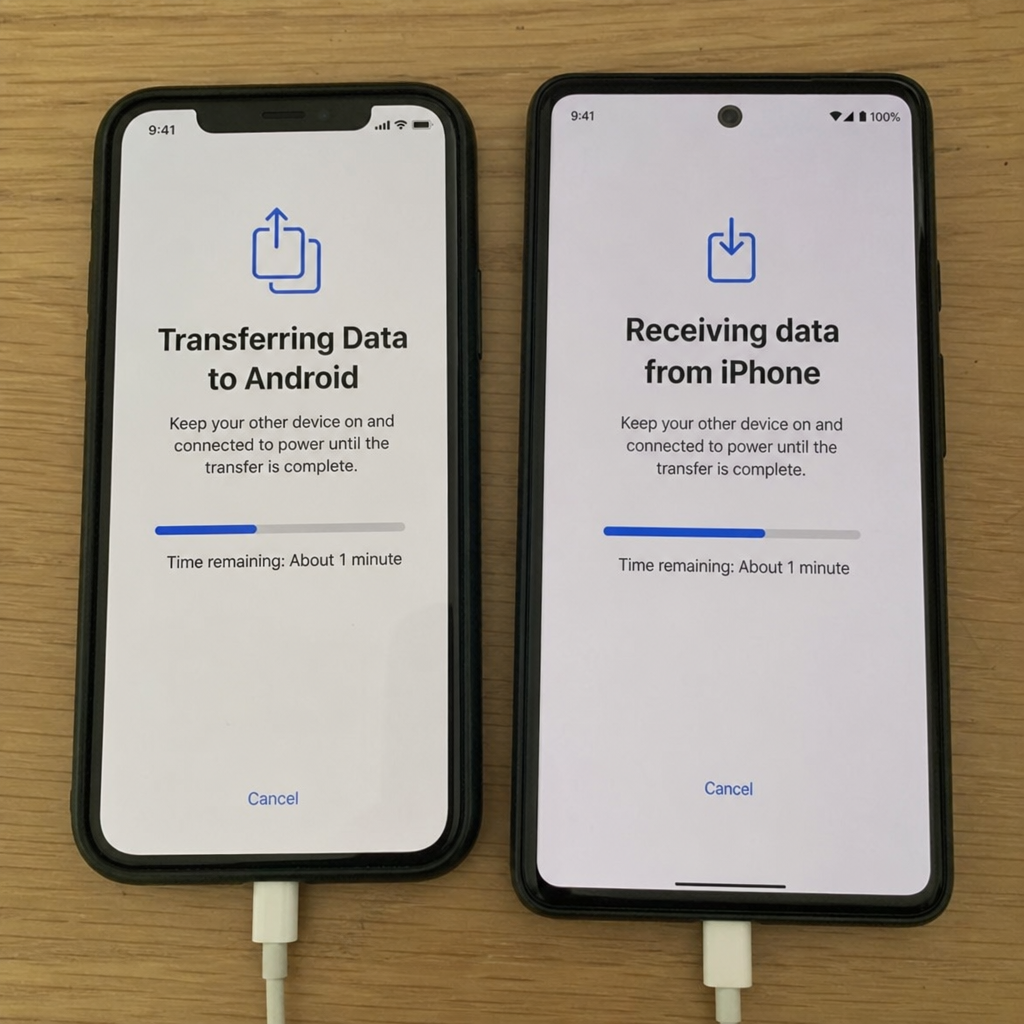
Most people should begin with the guided setup on the new Android phone. During setup, Android may offer a wireless transfer through the Android Switch app or a cable-based transfer, depending on the phone model and setup path. Google's guidance says to keep devices connected until setup is finished, even if another step, such as eSIM transfer, appears during the process. (support.google.com) A cable is still a strong choice when you want reliability. It can help if your Wi-Fi is unstable, your photo library is large, or you want the most direct connection between phones. Wireless transfer is more convenient, but it depends on signal strength, battery level, and whether both devices stay awake and nearby. The newer transfer experience can move more than the basics. Depending on device support, you may be able to move contacts, messages, photos, calendar items, call history, Wi-Fi networks, passwords, favorite apps, and home screen layout details. Google also notes that Apple Passwords can move into Google Password Manager through the upgraded method, while older transfer paths may need manual steps. (android.com) There are still limits. Purchased iOS apps do not become Android purchases, and some app data may not move if the developer does not support cross-platform syncing. Subscriptions usually stay tied to the app developer or app store account, so check each one before canceling anything or deleting the iPhone version.
How do you keep messages, WhatsApp, and contacts from getting messy?
To keep messages, WhatsApp, and contacts clean, transfer them during guided setup when possible, then turn off Apple messaging services before fully leaving the iPhone behind. Apple advises people who switch to a non-Apple phone to turn off iMessage if they are not receiving RCS, SMS, or MMS messages, and the same steps include turning off FaceTime on the iPhone. (support.apple.com) This step matters because your phone number may still be tied to Apple's messaging system. If that happens, messages from iPhone users can act oddly, especially in older group chats. Before moving the SIM or after the transfer, open iPhone settings, turn off iMessage, turn off FaceTime, and use Apple's opt-out tool if you no longer have the iPhone. WhatsApp needs its own check because it uses a separate migration flow. WhatsApp's help for moving from iPhone to Android points users to the iPhone app's chat transfer option, and Google's Android help also notes that WhatsApp chats and data can move from an old iPhone or Android to a new Android device. WhatsApp warns that new chat history created on the new phone cannot be merged with older history later, so do the transfer before you start using WhatsApp heavily on Android. (faq.whatsapp.com) For contacts, make sure you know where they live. Some may be stored in iCloud, some in Gmail, and some in a work account. After the move, open the Contacts app on Android and check that your most important names, numbers, and email addresses appear once, not as duplicates across several accounts.
Know the iOS vs Android trade-offs before they surprise you
The iOS vs Android difference is not just about icons and settings. It is about ecosystems. If your daily routine depends on iMessage, FaceTime, AirDrop, Apple Watch, iCloud Keychain, and tight Mac integration, Android can still work well, but you will need replacements for some habits. Apple Watch is the clearest example of lock-in. Apple's setup guidance is built around pairing and managing Apple Watch with an iPhone, so do not buy an Android phone expecting the watch to behave like it did before. (support.apple.com) If wearable features matter, look at watches designed for Android before you switch, such as Pixel Watch, Galaxy Watch, Garmin, Fitbit, or another option that fits your fitness and notification needs. AirPods are more flexible, but not identical. Google says many Apple devices, including AirPods, can connect to Android, while some functions may not be supported. Apple also provides instructions for pairing AirPods with non-Apple devices. (support.google.com) In practice, expect basic Bluetooth audio to work, but some seamless Apple-only behaviors may be reduced. Software updates are another buying factor. Pixel 8 and later phones receive seven years of OS and security updates from when the device first became available in the Google Store in the United States, and Samsung says some Galaxy devices receive up to seven years of security update support. (support.google.com) Still, Android update policies vary by brand and model, so check the exact phone before buying, especially if you plan to keep it for many years.
Apps, subscriptions, and cloud services need a quick audit
Most major apps exist on both platforms, but the experience is not always the same. Banking, messaging, streaming, maps, password managers, productivity tools, and fitness apps often sync through your account once you sign in. The apps most likely to cause friction are Apple-only apps, apps with iOS-only purchases, and apps that stored data only on the device.
Before you switch, group your apps by importance:
- Critical apps: banking, sign-in, work email, password manager, health care, transit, ride-share, and family communication.
- Daily convenience apps: calendar, notes, tasks, maps, weather, podcasts, music, smart home, and photo editing.
- Replaceable apps: games, casual tools, wallpapers, camera filters, and one-off tools.
Open the Android version of each critical app as soon as you can. Confirm that you can sign in, receive verification codes, see your history, and use any required device approval. For two-factor authentication apps, follow the provider's transfer process carefully; do not erase the iPhone until those codes work on Android. If you use Apple Notes, Reminders, Calendar, or iCloud Drive, decide whether to keep using them through a browser or move to cross-platform options. Google Keep, Google Calendar, Microsoft OneNote, Microsoft To Do, Dropbox, Google Drive, and other multi-platform services can make life easier if you still own a Mac or iPad.
Make Android feel familiar, then make it better
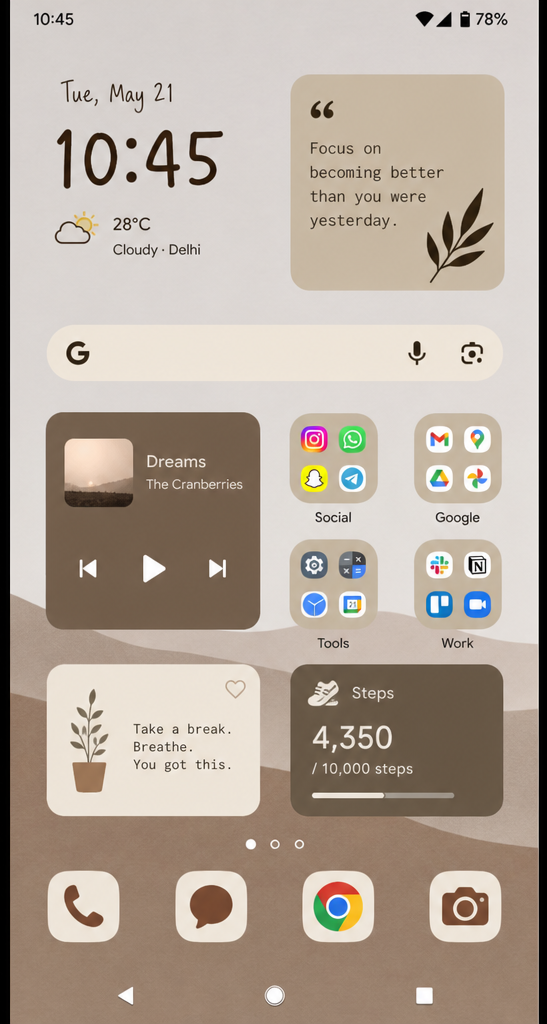
One of the best android tips is to avoid changing everything on day one. First, make Android familiar enough that you can use it well. Then, after the basics feel stable, explore the custom options that probably motivated the switch in the first place. Start with the essentials. Set your default browser, email app, maps app, keyboard, payment wallet, and assistant preferences. Adjust notification channels so noisy apps do not take over your lock screen. Add your most-used widgets, but resist filling every home screen right away.
Then experiment with Android's strengths:
- Home screen layout: Place apps, folders, and widgets where they fit your routine, not where the phone maker put them.
- Default apps: Choose the browser, SMS app, launcher, keyboard, and email client you actually prefer.
- Notifications: Fine-tune alerts by category, so delivery updates can appear while marketing pings stay silent.
- File access: Use Android's file manager to find downloads, PDFs, images, and shared documents more directly.
- Sharing menu: Pin or prioritize the apps and contacts you send things to most often.
- Launcher options: If your phone allows it, try a different launcher once you understand the default one.
Common transfer hiccups have simple fixes
Even a well-planned move can hit a snag. The trick is to troubleshoot calmly instead of restarting the whole migration too quickly. Many issues come down to connection, storage, account permissions, or trying to use the new phone before the old data has finished copying.
If the transfer stalls, check the basics first:
- Battery is low: Plug in both phones and keep them close together.
- Wi-Fi drops: Move near the router or switch to a cable transfer if your phone supports it.
- Cable fails: Try another cable that supports data, not just charging.
- Storage is short: Delete unneeded downloads, videos, or duplicate media from the destination phone and try again.
- Messages are incomplete: Confirm iMessage is turned off and give carrier messaging time to settle.
- WhatsApp history is missing: Stop using WhatsApp on the new phone until you confirm whether you need to restart the app transfer flow.
- Apps did not appear: Download them manually from Google Play and sign in with the original account.
- Passwords are absent: Check Google Password Manager, your old password manager, and Apple Passwords export or transfer options before resetting logins.
The most important rule is to keep the iPhone nearby. For the first week, it is not just your old phone; it is your backup, 2FA access, photo archive, and reference point.
The first week on Android sets the tone
Your first week should be about rebuilding confidence. Make a short list of things you do every day on your phone, then test each one. Send a message to an iPhone friend, make a video call, pay in a store, connect to your car, join your home Wi-Fi, open work files, approve a bank login, and use maps on a real errand. If you still use a Mac or iPad, choose cross-platform bridges. Chrome, Google Drive, Microsoft 365, Dropbox, Spotify, WhatsApp, Signal, Zoom, and similar services can reduce the feeling that your devices no longer talk to each other. You may not recreate every Apple ecosystem shortcut, but you can build a setup that is more portable across future devices. Also give yourself permission to prefer some iPhone habits. Switching platforms is not a loyalty test. You are learning a different operating system, different settings logic, and often a different maker's design choices. After a few days, the best parts of Android usually become clearer: broader hardware choices, deeper custom options, flexible defaults, and more ways to shape the phone around your routine.
Final takeaway
Switching from iOS to Android is less risky when you treat it as a short project: prepare, transfer, verify, then personalize. Use the guided Android setup, handle WhatsApp and iMessage deliberately, check your most important apps before erasing the iPhone, and expect a few ecosystem trade-offs. Once the essentials are stable, Android gives you plenty of room to make the phone feel truly yours.
Ready to part with your old iPhone? Check its current value and compare your selling options with Cashmycell.
FAQs
1. Should you erase your iPhone as soon as the Android transfer finishes?
No. Keep the iPhone nearby for at least a few days, and preferably through your first week on Android. It may still be needed for two-factor auth codes, app approvals, missing files, photos, password checks, WhatsApp verification, or account recovery. Erasing it too early can make small migration problems much harder to fix.
2. Is a cable transfer better than a wireless transfer?
A cable transfer is often more reliable, especially if you have a large photo library, unstable Wi-Fi, or want the most direct connection between devices. Wireless transfer is convenient and may work well, but it depends on strong signal, battery level, and keeping both phones close and awake until setup is complete.
3. What should you do if messages from iPhone users stop arriving correctly?
Check iMessage first. Your phone number may still be tied to Apple's messaging system, which can interfere with RCS, SMS, or MMS after switching. Turn off iMessage and FaceTime on the iPhone if you still have it, and use Apple's opt-out tool if you no longer have access to the device.
4. Will all iPhone apps and purchases automatically carry over to Android?
Not always. Many major apps exist on both platforms and will sync once you sign in, but purchased iOS apps do not automatically become Android purchases. Some app data may not transfer unless the developer supports cross-platform syncing, and subscriptions should be checked individually before canceling anything or deleting the iPhone version.
5. What is the best way to make Android comfortable during the first week?
Start by recreating the essentials instead of changing everything immediately. Set your default browser, email app, maps app, keyboard, wallet, and notification preferences, then test daily tasks like messaging, video calls, payments, car connection, Wi-Fi, work files, and bank logins. Once the basics feel stable, explore Android's custom options, widgets, launchers, and flexible default apps.